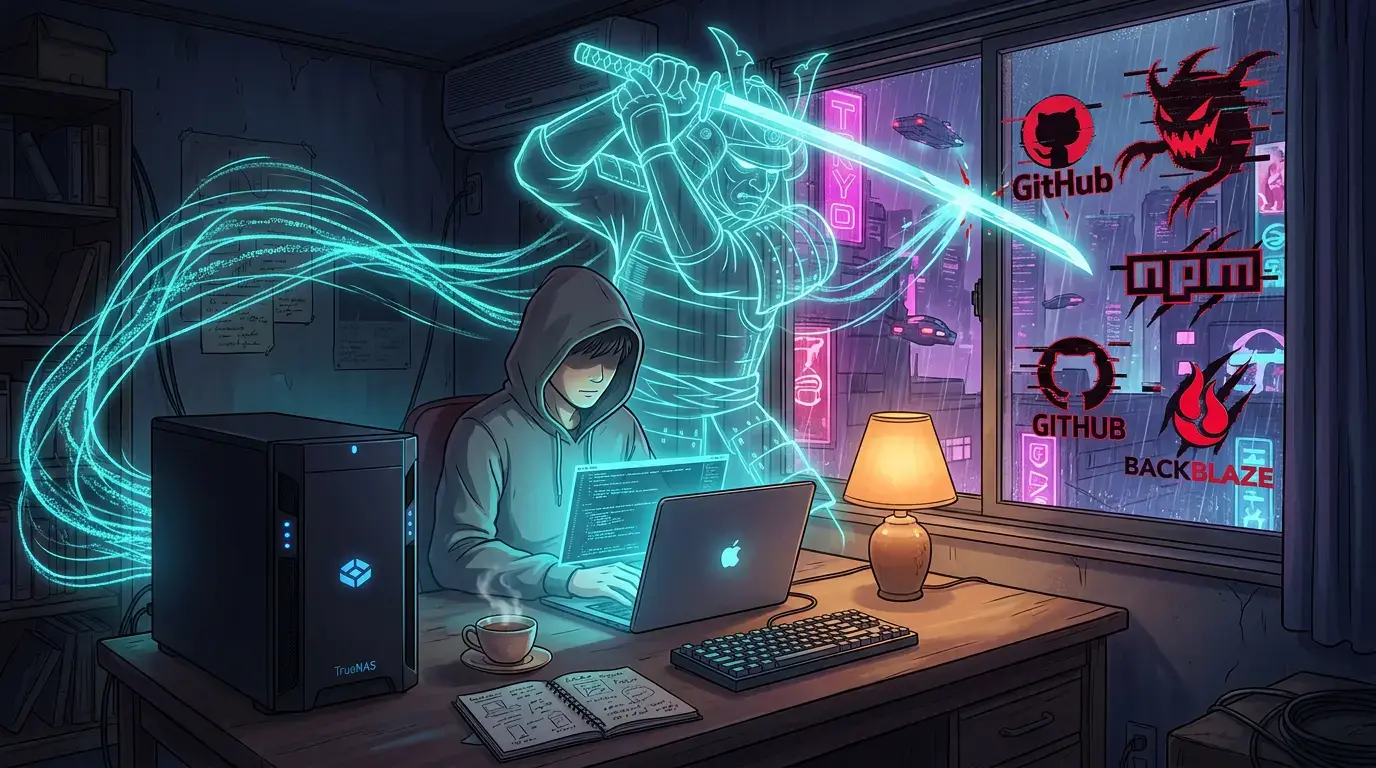
It was May 19th, 2026, around 9 AM. Coffee not yet finished. I was scrolling through Twitter when this landed:
We are investigating unauthorized access to GitHub’s internal repositories. While we currently have no evidence of impact to customer information stored outside of GitHub’s internal repositories (such as our customers’ enterprises, organizations, and repositories), we are closely…
— GitHub (@github) May 19, 2026
GitHub. The GitHub. The platform every working programmer pushes to a hundred times a week. Internal repositories. Unauthorized access. They were investigating. They didn’t yet know how deep.
I put the coffee down. Looked at my Mac. Then looked at the external Time Machine drive sitting on the shelf next to my monitor — that brick of plastic and spinning rust I’d been telling myself was a “backup strategy” for three years — and felt nothing but contempt for it. Then I tabbed over to my Backblaze dashboard, where 290 GB of my life was sitting on someone else’s servers, encrypted with someone else’s keys, governed by someone else’s TOS.
We’ve all been told for decades that the backup is the holy grail. Three copies. Two media. One offsite. The 3-2-1 mantra. Repeat after me.
What nobody tells you is that the offsite doesn’t have to be a third party. And in 2026 — the year of compromised npm maintainers, leaked CI tokens, cracked Actions runners, AI-generated phishing kits indistinguishable from real internal mail, and the slow grinding realization that every cloud platform you use is one bored intern away from leaking your entire working life — the offsite arguably shouldn’t be a third party.
I cancelled Backblaze that afternoon. I unplugged the USB drive that evening. By the next weekend I had a TrueNAS box on a closet shelf, a 250 GB SMB share with the right Apple magic enabled, and Time Machine quietly streaming to disks I own.
This is the story of that weekend. The decisions, the traps, the moment where Apple’s documentation lies to you, the URL-encoding indignity, and what it actually feels like — a month in — to have your backups living somewhere you control.
The shape of the decision
Three things I had to commit to before any wrenches came out.
A NAS, not the cloud. Backblaze is good software. So is Arq, so is iCloud, so is whichever managed backup you pay $7/month for. They are also all someone else’s computer. When that someone else gets breached — and in 2026 they all eventually do — your data is their problem first and yours second. A NAS is your computer. It sits in your closet. The disks are your disks. If it gets compromised, that’s because you got compromised, not because Backblaze’s contractor’s contractor mishandled a session token.
TrueNAS, not Synology. Synology is fine. The UI is friendlier. But TrueNAS gives you ZFS for free — snapshots, checksums on every block, send/receive replication to a second box, immune to bitrot, the whole serious-data toolkit. The community is huge, the project has been around for two decades, and SCALE (the newer fork) runs on commodity x86 so you don’t need proprietary hardware. If I’m going to point ten years of my work at a box, that box runs ZFS.
SMB, not NFS or AFP. This one wasn’t really a choice — Apple killed AFP for Time Machine years ago and dropped NFS support too. SMB is now the only network protocol macOS will accept, and only when the share carries a specific magic flag we’ll get to in a minute. If you’ve been dragging your feet thinking NFS would feel more “real-Unix,” forget it. SMB or nothing.
The shape of what I’m building: a TrueNAS dataset, capped with a quota, exposed as an SMB share with the Time Machine purpose flag turned on, registered with tmutil, hourly schedule killed in favour of a monthly LaunchDaemon, and a fistful of developer-aware exclusions so I’m not hauling 40 GB of node_modules over the wire every cycle.
Let’s go.
TrueNAS: the dataset (and why the quota is non-negotiable)
TrueNAS calls these things datasets. It’s basically ZFS naming for “a logical slice of your pool with its own properties.” Quotas, compression, snapshot schedules — all per-dataset. Carving out a dedicated one for Time Machine means it can’t eat into your other shares, and you can snapshot it independently.
Web UI → Datasets → click your pool to expand → Add Dataset. The fields that matter:
- Name →
timemachine - Dataset Preset / Share Type →
SMB. This isn’t cosmetic — it sets the right POSIX/ACL defaults for SMB clients, which saves you from a permissions rabbit hole later. - Advanced Options → Quota for this dataset →
250 GiB, or whatever ceiling you can live with.
About that quota. Time Machine writes to a sparse bundle — Apple’s grow-on-demand disk image format. Without a hard quota, the sparse bundle will keep growing until it has eaten your entire pool, starving every other share you’ve set up. You will notice this when your media server stops working. The quota is a ceiling. When Time Machine hits it, it starts rotating out the oldest snapshots automatically. Pick a number. You can grow it later. Do not skip it.
TrueNAS: the SMB share (and the flag that nobody documents properly)
This is the step where most setups silently die.
You’ll create an SMB share pointing at the dataset you just made. The first three fields are mechanical:
- Path →
/mnt/<pool>/timemachine - Name →
timemachine - Enabled → ✅
Then there’s the Purpose dropdown. Set it to Time Machine Share (some versions call it Multi-user Time Machine). And if your version doesn’t have a Purpose dropdown at all, dig into Advanced Options and find the Time Machine checkbox — same effect.
Here is what this single flag actually does, and why omitting it is the difference between “it works” and “macOS pretends the share doesn’t exist.” Behind the scenes, that flag tells Samba two things:
- Load the
vfs_fruitmodule — Apple’s SMB extensions that understand resource forks, AppleDouble metadata, and the sparse-bundle band format Time Machine uses. Withoutvfs_fruit, a backup will start, then corrupt itself, then fail with an opaque error a few hours in. - Advertise the share over Bonjour with the
_adisk._tcpservice record. This is what makes the share appear in System Settings → Time Machine without you typing the URL by hand. It’s how macOS discovers the share is a Time Machine destination.
Skip the flag and your share is a fine general-purpose SMB folder, but macOS will refuse it as a TM target. The error you get is misleading. The fix is one checkbox.
Save the share. TrueNAS will offer to restart SMB so Bonjour picks up the change. Say yes.
macOS: the Finder mount that primes the Keychain
Before doing anything with tmutil, mount the share once through Finder. Cmd+K, paste smb://<NAS-IP>/timemachine, authenticate as the TrueNAS user you created, and tick the “Remember this password in my keychain” box.
That box is everything. It writes the credential into your login Keychain so every subsequent SMB mount — from Finder, from osascript, from the LaunchDaemon when it fires at 03:00 in the morning while you’re asleep — can fetch the password silently.
Then prove the mount actually works:
touch /Volumes/timemachine/.write-test && \
  rm /Volumes/timemachine/.write-test && \
  echo writable
If writable doesn’t print, your TrueNAS user doesn’t have write permissions on the dataset. Fix it on the TrueNAS side before going further. Time Machine will be even less helpful about diagnosing this than a touch command is.
The URL-encoded password indignity
Now we register the destination with tmutil setdestination. And here’s where Apple loses its mind a little.
tmutil does not read from your login Keychain. (Why? Because tmutil runs as root for the actual backup, and root doesn’t have your login Keychain.) Which means you have to embed credentials directly in the URL, exactly once, like it’s 1998 and we’re all still putting passwords in ftp:// links.
Worse: any special character in your password has to be URL-encoded. Here are the ones that bite people:
| Character | Becomes |
|---|---|
@ | %40 |
: | %3A |
/ | %2F |
# | %23 |
? | %3F |
% | %25 |
| (space) | %20 |
If your password is 19March1999@, the URL gets 19March1999%40. Get this wrong and tmutil will either complain about a malformed URL or — worse — silently use the wrong password and you’ll spend the next hour debugging why backups never start.
Then:
sudo tmutil setdestination -a "smb://USERNAME:URLENCODEDPASSWORD@NAS_IP/timemachine"
sudo tmutil enable
tmutil destinationinfo
destinationinfo should print a UUID, a URL, and Kind : Network. That’s the handshake. Once this works exactly once, the credential is in the System Keychain and you never type it again. Even when launchd fires a backup at 03:00 as root with no shell session attached, the System Keychain provides the password automatically.
The reason this two-Keychain thing is so confusing is that Finder uses one (login Keychain) and tmutil uses the other (System Keychain). Until you’ve done the setdestination dance, the System Keychain has nothing, and root-launched backups will mysteriously fail. After you’ve done it once, both Keychains have what they need and life is calm.
The exclusions list, written by a developer for developers
Out of the box, Time Machine backs up everything in your home directory. On a developer machine, “everything” means hauling 40 GB of node_modules, 20 GB of Xcode DerivedData, 30 GB of Android emulator images, and a Gradle cache that’s somehow always growing — over the network, every backup. You will hate your life.
tmutil addexclusion -p permanently excludes a path. The -p flag pins the rule to the path string itself, so the exclusion survives a rm -rf node_modules && bun install. Without -p, the rule would attach to the directory’s inode and silently evaporate the next time you reinstall deps.
Here’s the loop I run on a fresh machine:
for p in \
  ~/Code/*/node_modules \
  ~/Code/*/.next \
  ~/Code/*/dist \
  ~/Code/*/build \
  ~/Code/*/.turbo \
  ~/.bun/install/cache \
  ~/.gradle/caches \
  ~/.android/avd \
  ~/.cache \
  ~/.npm \
  ~/.nvm/.cache \
  ~/Library/Caches \
  ~/Library/Developer/Xcode/DerivedData \
  ~/Library/Developer/CoreSimulator/Caches \
  /Volumes/media; do
  [[ -e "$p" ]] && sudo tmutil addexclusion -p "$p"
done
The principle behind every entry: if I can regenerate it from a lockfile or a re-build, it doesn’t deserve network bandwidth. node_modules comes from bun.lock. .next and dist come from bun run build. DerivedData comes from a clean Xcode build. The AVDs are emulator state I can remake in five minutes. The Gradle and Bun caches refill themselves the next time I run something. Caches in ~/Library/Caches refill themselves the moment I open an app.
The one entry that isn’t a regenerable artifact is /Volumes/media. That’s the NAS itself. You absolutely do not want Time Machine recursing into a network share to back it up. That way lies infinite loops and a destroyed weekend.
Check whether something is excluded:
tmutil isexcluded ~/Code/somerepo/node_modulesRemove an exclusion:
sudo tmutil removeexclusion -p ~/some/pathThis list shaved my first incremental backup from “starting at 8 PM, still going at 6 AM” to twelve minutes. The cost of getting this right is enormous.
Killing Apple’s hourly schedule
Apple’s default Time Machine cadence is one backup every hour, forever, while the destination is reachable. For a USB drive plugged into your desk, this is fine — the drive is idle 23 hours a day, the only cost is electricity. For a NAS sitting on your home network, hourly backups mean constant SMB chatter, regular spikes on your Wi-Fi, and a sparse bundle that’s perpetually fragmenting itself.
I don’t need hourly. For things I’m actively editing I have git. What I need is a real cold snapshot of the rest of my machine, once a month, in the dead of night when nobody cares.
Apple gives you a one-liner for the kill:
sudo tmutil disableAnd then I replace the schedule with a LaunchDaemon that fires on the 1st of each month at 03:00:
<?xml version="1.0" encoding="UTF-8"?>
<!DOCTYPE plist PUBLIC "-//Apple//DTD PLIST 1.0//EN" "http://www.apple.com/DTDs/PropertyList-1.0.dtd">
<plist version="1.0">
<dict>
    <key>Label</key>
    <string>com.prometheus.tm-monthly</string>
    <key>ProgramArguments</key>
    <array>
        <string>/usr/bin/tmutil</string>
        <string>startbackup</string>
        <string>--auto</string>
    </array>
    <key>StartCalendarInterval</key>
    <dict>
        <key>Day</key>    <integer>1</integer>
        <key>Hour</key>   <integer>3</integer>
        <key>Minute</key> <integer>0</integer>
    </dict>
    <key>StandardOutPath</key>
    <string>/var/log/tm-monthly.log</string>
    <key>StandardErrorPath</key>
    <string>/var/log/tm-monthly.log</string>
</dict>
</plist>
It’s a LaunchDaemon, not a LaunchAgent. Lives under /Library/LaunchDaemons/, owned by root:wheel, runs as root. This matters: at 03:00, your user session isn’t active. A LaunchAgent wouldn’t fire because there’s no GUI context. A LaunchDaemon fires regardless of who is or isn’t logged in, and runs tmutil startbackup --auto with full permissions, no sudo prompts, no babysitting.
Install it, load it, kill the hourly schedule:
sudo cp com.prometheus.tm-monthly.plist /Library/LaunchDaemons/
sudo chown root:wheel /Library/LaunchDaemons/com.prometheus.tm-monthly.plist
sudo chmod 644       /Library/LaunchDaemons/com.prometheus.tm-monthly.plist
sudo launchctl load  /Library/LaunchDaemons/com.prometheus.tm-monthly.plist
sudo tmutil disable
Want a different cadence? Edit the StartCalendarInterval dict. Daily at 03:00 means leaving out the Day key. Weekly on Sundays means swapping Day for Weekday and setting 0. Twice a month means an array of two dicts. The schema is documented in man launchd.plist and it’s actually one of the nicer parts of the launchd ABI.
For everything in between the monthly fires — before a big system update, before unplugging from the home network for a trip, after a heavy day of work I don’t want to lose — there’s a one-liner I aliased to tm-backup:
sudo tmutil startbackup --autoIf you want progress while it runs, watch tmutil status in another terminal, or wrap it in a shell helper that pretty-prints percentage and bytes-copied. (Mine is twenty lines of bash; nothing magical.)
What it actually feels like
A month in, the rhythm is invisible. On the 1st of every month, at 03:00, while I’m asleep, my Mac quietly streams its incremental backup to a box on a closet shelf six feet from where I sleep. I never see a prompt. I never plug in a drive. I never think about it.
The week after the GitHub thing, three more cloud incidents hit the timeline. A managed CI provider leaked customer build artifacts to a misconfigured S3 bucket. A popular SaaS got phished and the attackers emailed every customer’s downstream contact list. An npm package with 12 million weekly downloads pushed a postinstall script that exfiltrated .npmrc tokens. Each one, I watched the panic on Twitter from a quiet distance, because none of them touched anything I owned.
That distance is the actual product. It isn’t “backups completed successfully.” It’s the calm.
The lesson — sovereignty is a discipline, not a feature
The trap of every backup conversation is treating it as a setup task. Something you do once, configure correctly, then forget. That framing makes you think the win is the moment you see “Last backup: 2 minutes ago” in the menu bar.
It isn’t. The win is six months later, when something genuinely catastrophic happens — a hack, a hardware failure, a stupid rm -rf you typed in the wrong directory while underslept — and you remember, with no panic, that you have a complete copy of your machine sitting in a place you own, on disks you can lock in a cabinet if you have to, governed by no terms of service.
Sovereignty over your data is a discipline. It’s a posture. It’s the choice to spend a weekend setting up TrueNAS instead of a recurring subscription. It’s the willingness to learn what vfs_fruit does and why your SMB share needs a specific Bonjour record. It’s URL-encoding a password and then never thinking about it again.
In the AI age — where compromised maintainers ship malware in your dependencies, where phishing emails are indistinguishable from real ones, where every platform you trust is one zero-day from yesterday’s news — something you control is the only kind of backup that counts.
Go build yours.
The closet is the part of the house you don’t think about. It’s also, increasingly, the safest place to put your life.
— Abdul
Discussion
Share your thoughts and engage with the community